Mastering X (Twitter) Trends: Your Ultimate Guide to Staying Ahead

In the fast-paced world of social media, being “late to the party” means missing out on the conversation. Since Twitter rebranded to X, the platform has become even more of a real-time news engine. If you want to be the first to know what’s viral, mastering Twitter Trends is your “secret weapon.”
Table of Contents
Why Should You Care About Trending Topics on Twitter?
Twitter trends (now known as X Trends) are far more than just a simple list of hashtags; they represent the real-time “pulse of the world.” If you aren’t paying attention to these shifts, you are missing out on the most powerful data the internet has to offer. Here is why staying updated is crucial:
- Instant News & Global Awareness: Twitter remains the fastest source of information on the planet. Whether it’s breaking global political events, natural disasters, or the latest K-pop comebacks, trends allow you to witness history as it unfolds. Being “in the loop” ensures you are never left out of critical global conversations.
- Strategic Networking: Trends are the digital equivalent of a massive global town square. By participating in the right conversations at the right time, you can significantly increase your visibility. Engaging with trending topics helps you succeed in growing your followers by connecting with like-minded individuals beyond your current circle.
- A Goldmine for Content Strategy: For creators and bloggers, Twitter trends provide a constant stream of “viral-worthy” ideas. Instead of guessing what your audience wants, you can look at the trends to see exactly what is capturing the world’s attention right now. This allows you to create timely, relevant content that has a much higher chance of being shared.
- Real-Time Market Insights: Brands and marketers use trends as a free sentiment analysis tool. It helps you understand what people are complaining about or praising in real-time. By monitoring these discussions, you can pivot your marketing strategy, address customer pain points, or capitalize on a competitor’s weakness instantly.
Step-by-Step Guide: How to Change Your Twitter Location
Whether you want to keep an eye on the latest viral trends in Vietnam or dive into massive Global discussions, you don’t have to be limited by your physical GPS. Here is exactly how you can “hack” your Twitter (X) location settings to see what the world is talking about.
1. Managing Twitter Trends on Mobile Devices
Your smartphone is your primary window to the world, but the default settings often restrict you to local news. Don’t just settle for the limited content in your immediate area. Follow these detailed steps to expand your horizon:
- Step 1: Open the Explore Tab. Tap the Search (Magnifying Glass) icon at the bottom of your screen. This isn’t just for looking up users; it is your primary gateway to discovering what is currently viral on Twitter.
- Step 2: Access Search Settings. Once you are on the Explore page, look for the Gear icon (Settings) located at the top right corner. This menu allows you to override the platform’s automatic algorithms.
- Step 3: Break Geographic Barriers. You will see an option labeled “Show content in this location.” By default, this is turned on to show you nearby news. To go global, you must toggle this off. This action “un-locks” your feed from your current GPS coordinates.
- Step 4: Select Your Target Audience. After toggling the location off, a new menu called Explore Locations will appear. Tap it and type in any country. For example, search for “Worldwide” to see the biggest global stories, or type “Vietnam” if you want to catch up on local “drama” and entertainment news.
Pro Tip for Mobile Users: If you find yourself frequently switching between two countries, remember that Twitter usually saves your last searched location, making it easier to jump back and forth.
2. Optimizing the Twitter Pro View on Desktop
For content creators and marketers who work on a larger screen, managing Twitter trends is even more efficient. The desktop interface allows for a broader view of the “What’s Happening” section, making it the perfect tool for deep-dive research. Here is how you can take full control:
- Access the Exploration Hub: Start by using the sidebar on the left side of your home feed. Navigate to the Explore tab (the magnifying glass icon). On desktop, this page is divided into categories like “Trending,” “News,” and “Entertainment,” allowing you to see a categorized version of Twitter‘s global activity.
- Customize Your Feed Settings: Look at the top right of the Explore page, right next to the search bar. You will see the Settings (Gear icon). Clicking this opens a dedicated pop-up menu for your content preferences.
- Unlock Global Access: In this menu, you will find a toggle for “Show content in this location.” When you disable this option, you effectively “unlock” the platform’s ability to show you trends from any corner of the globe.
- Search for Specific Markets: Once the location-based content is disabled, a new search bar for “Explore Locations” will appear. This is where you can type in any country—from the United States to Japan—to see what is capturing the attention of those specific audiences in real-time.
Pro Tips for Navigating X Trends Like a Boss

To truly master the platform, simply knowing where the trends are isn’t enough. You need to know how to read them:
- Look for the “Context”: Most trends now come with a small blurb or a headline below the hashtag. Read this first to understand why a topic is trending without having to scroll through thousands of posts.
- Check the “Personalized” tab: X often shows you “Trends for you.” While this is great for your interests, remember to switch to “Trending” to see what the rest of the world is actually talking about.
- Avoid the Spam: Sometimes, certain keywords trend due to bots. If you see a trend with a random string of numbers or unrelated images, it’s likely a spam trend.
Frequently Asked Questions (FAQ)
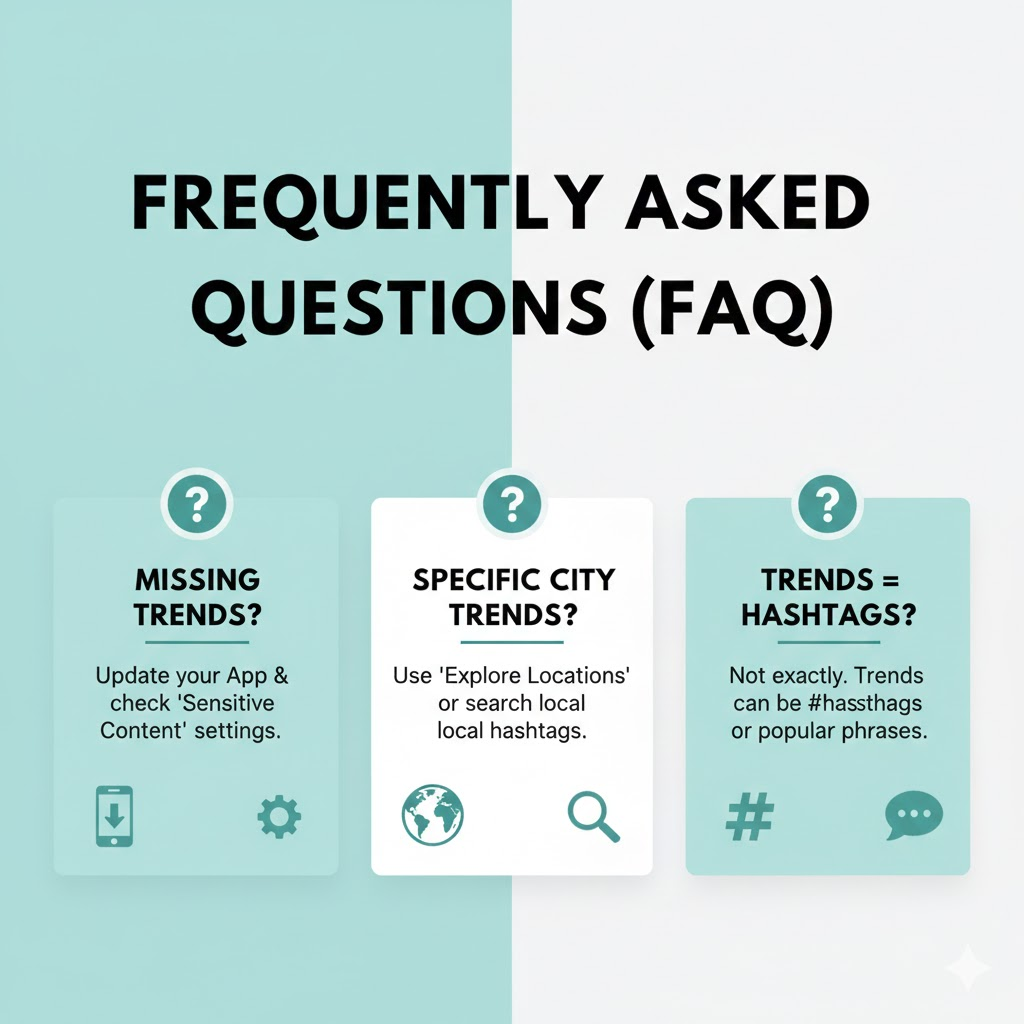
Q: Why can’t I see the Trends section? A: Ensure you are logged in and your app is updated. If it’s still missing, check your “Content Preferences” in settings to make sure your sensitive content filter isn’t blocking everything.
Q: Can I see trends for a specific city, like Ho Chi Minh City? A: X currently focuses more on country-level trends (e.g., Vietnam) rather than specific cities, but searching for local hashtags will give you a similar result.
The Verdict
X Trends is your window to the world’s most candid conversations. By knowing how to switch locations, you’re no longer just a spectator; you’re a global citizen.
Feel free to explore more of our blog on the website !